Batch and expiry date tracking
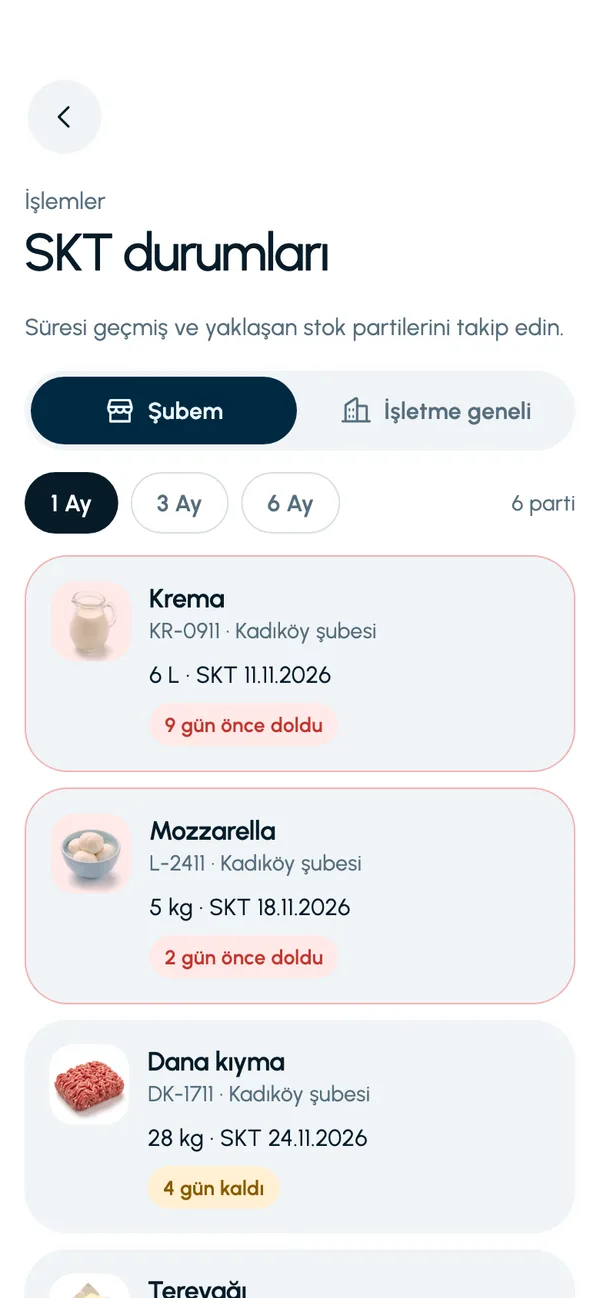
For products with an expiry date, LineerStok records every stock in as a separate batch. When stock goes out, the batch with the nearest expiry date is deducted first; this method is called FEFO. The Expiry status screen (SKT durumları) lists expired batches, batches expiring within 7 days and upcoming ones, in a 1, 3 or 6 month view.
What you can do
Every stock in is a batch
For a product with expiry tracking turned on, a batch code is required at stock in. Batches of the same product with different dates do not get mixed up.
Automatic date from shelf life
Enter the product's default shelf life in days. If you do not pick a date at stock in, the app calculates the expiry date itself.
Nearest date goes out first
At stock out, the app starts with the batch that has the nearest expiry date. Batches without a date are used last.
Expiry status screen
Expired batches are listed with how many days ago they expired, and batches expiring within 7 days are highlighted separately. You choose a 1, 3 or 6 month view.
Business-wide view
The business admin sees the batches of all branches and warehouses in one list.
Dates are kept on transfer
When goods go from a warehouse to a branch, the batch code and expiry date move to the branch with them.
Screens from the app
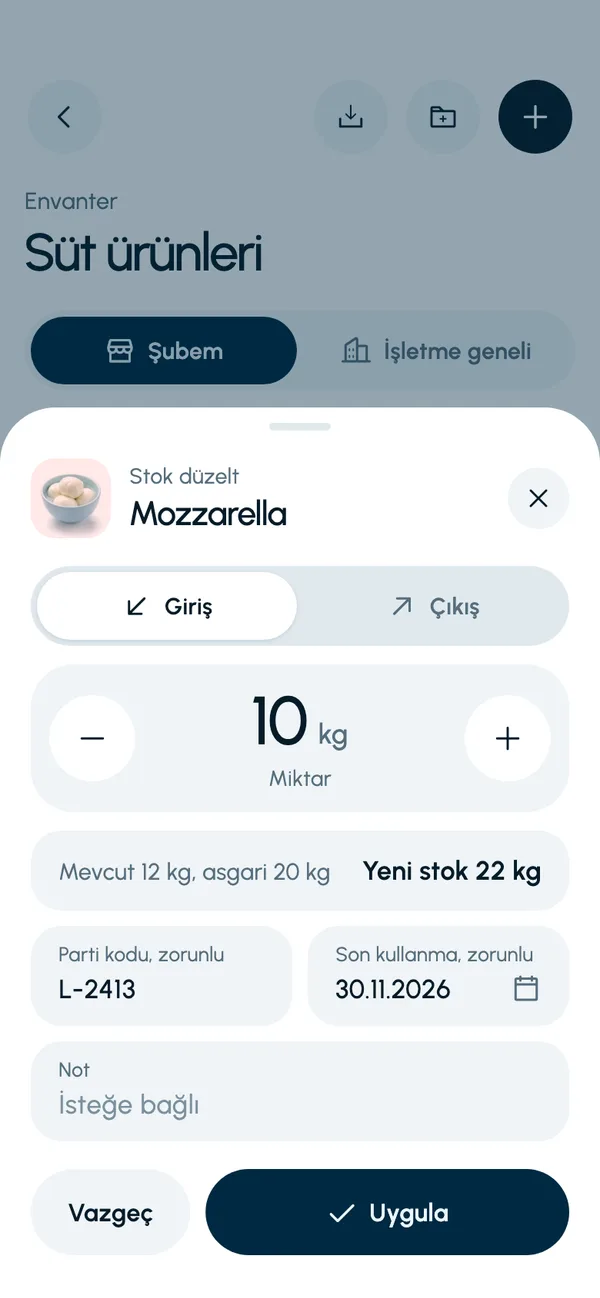
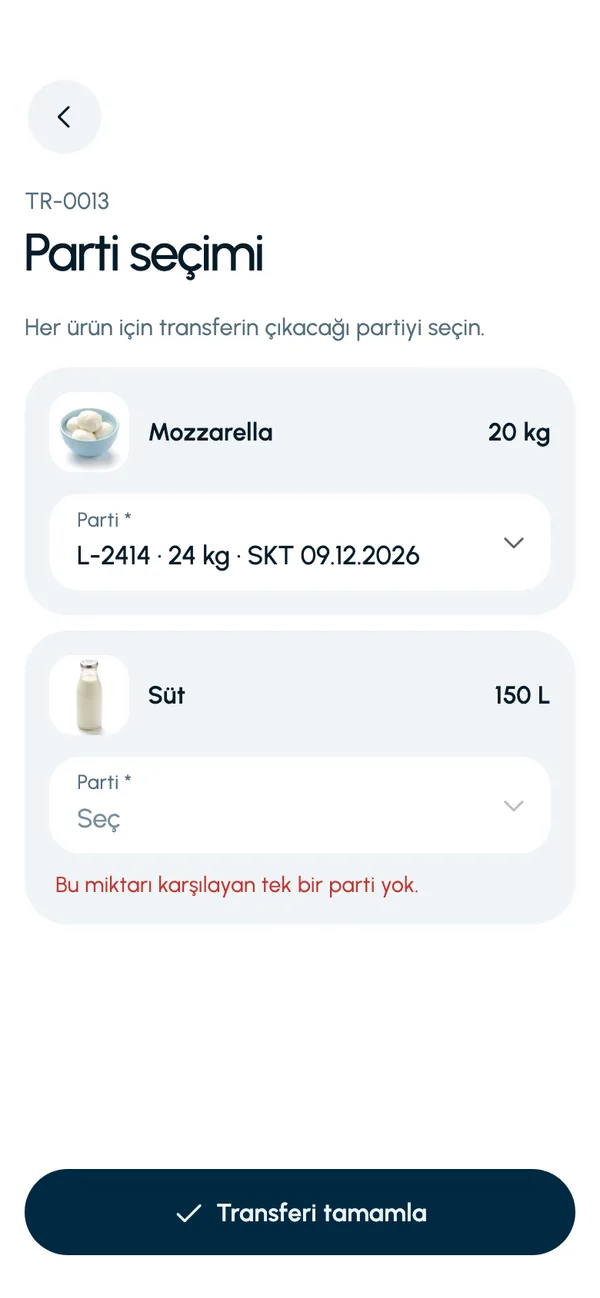
These are real screens from the app. The app interface is in Turkish; the business and products shown are sample data.
How it works
- 1
Turn on expiry tracking for the product
Switch on expiry tracking on the product card and, if you like, enter the shelf life in days.
- 2
Enter the batch code at stock in
When you receive goods, enter the batch code and the expiry date, or leave the date to the app.
- 3
Record stock out as usual
The app chooses which batch to deduct from: the one with the nearest date.
- 4
Check Expiry status
The counter on the Operations tab (İşlemler) shows how many batches have expired or will expire within 7 days.


At a glance
- Stock out method
- FEFO: the batch with the nearest expiry date first
- View range
- 1 month, 3 months, 6 months
- Statuses
- Expired, expiring within 7 days, upcoming
- Scope
- Branch; branches and warehouses for the business admin
Good to know
- For products with expiry tracking turned on, a batch code is required. If no shelf life is defined, the expiry date is required too.
- LineerStok does not send an email or push notification when an expiry date is approaching. The warning appears in the app, on the Expiry status screen and in the counter on the Operations tab.
- In a stock count, products with expiry tracking are counted batch by batch.
Frequently asked questions
Does LineerStok use FIFO or FEFO?
It uses FEFO. At stock out, the batch with the nearest expiry date is deducted first. Batches without a date are used last; among batches with the same date, the first one in is the first one out.
Do I have to enter an expiry date at every stock in?
Not if you have defined a default shelf life for the product. The app calculates the date by adding the shelf life to the stock in date. If no shelf life is defined, you pick the date yourself.
Where do I see expired products?
On the Expiry status screen, on the Operations tab. Each expired batch sits at the top of the list, with how many days ago it expired.
Do I get a notification when an expiry date is approaching?
Notifications are not sent at present. Approaching and past dates appear when you open the app, in the counter on the Operations tab and on the Expiry status screen.


Let us set up your stock together
We will walk you through the app with your own products and branches. The demo is free and takes about 30 minutes.